Vigil Documentation
Step by step for the current app: Protection, Focus, App and Insights.
Screenshots show the English app UI. Vigil is also available in German and four other languages.
1. Getting started
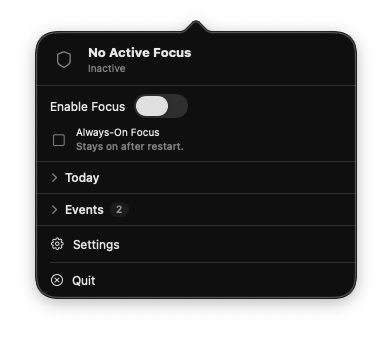
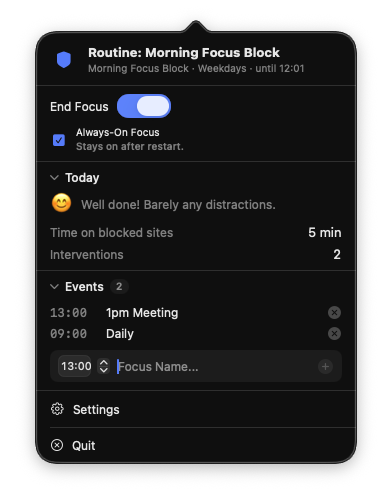
After launch, Vigil lives in the macOS menu bar. Click to open the popover: start focus, add events, expand Today/Events and open Settings.
Onboarding explains tab reading, passive tracking and that nothing is sent to Broschat Studios. Next comes Automation permission, one macOS dialog per browser.
You can continue without Automation; then Vigil will not control browsers. Open Settings via the gear in the popover or Cmd+,.
The Settings sidebar groups Protection, Focus, App, Insights and Help, matching this guide.
2. Protection → Overview
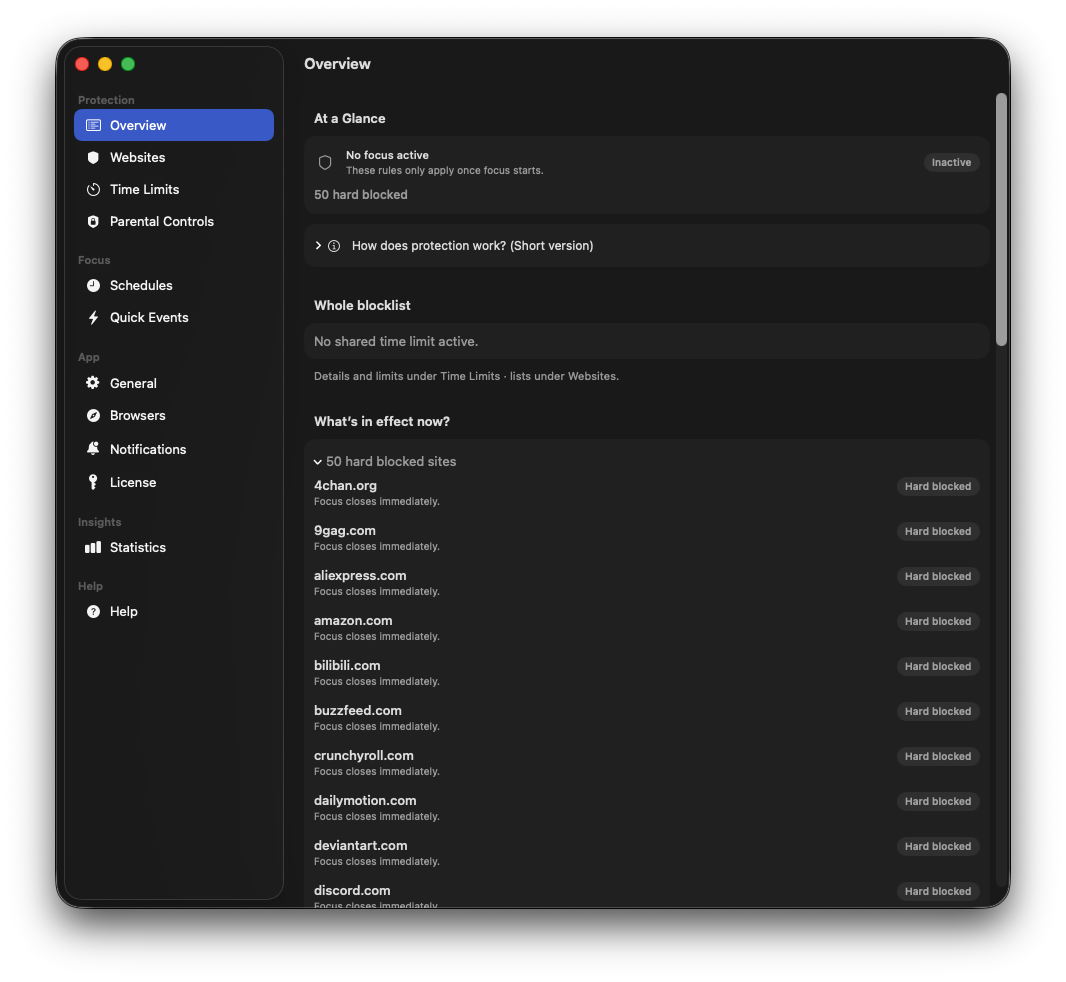
Overview shows at a glance whether focus is active and how protection works: without a time limit, focus closes the blocklist immediately (Hard). With a limit, sites stay open until the budget is empty (Soft).
Shared = budget for the whole blocklist. Per site = that domain only. Badges like "Hard blocked" or "Soft · Shared" make the current state obvious.
The short "How does protection work?" explainer lives right on Overview; limit details are under Time Limits, lists under Websites.
3. Websites
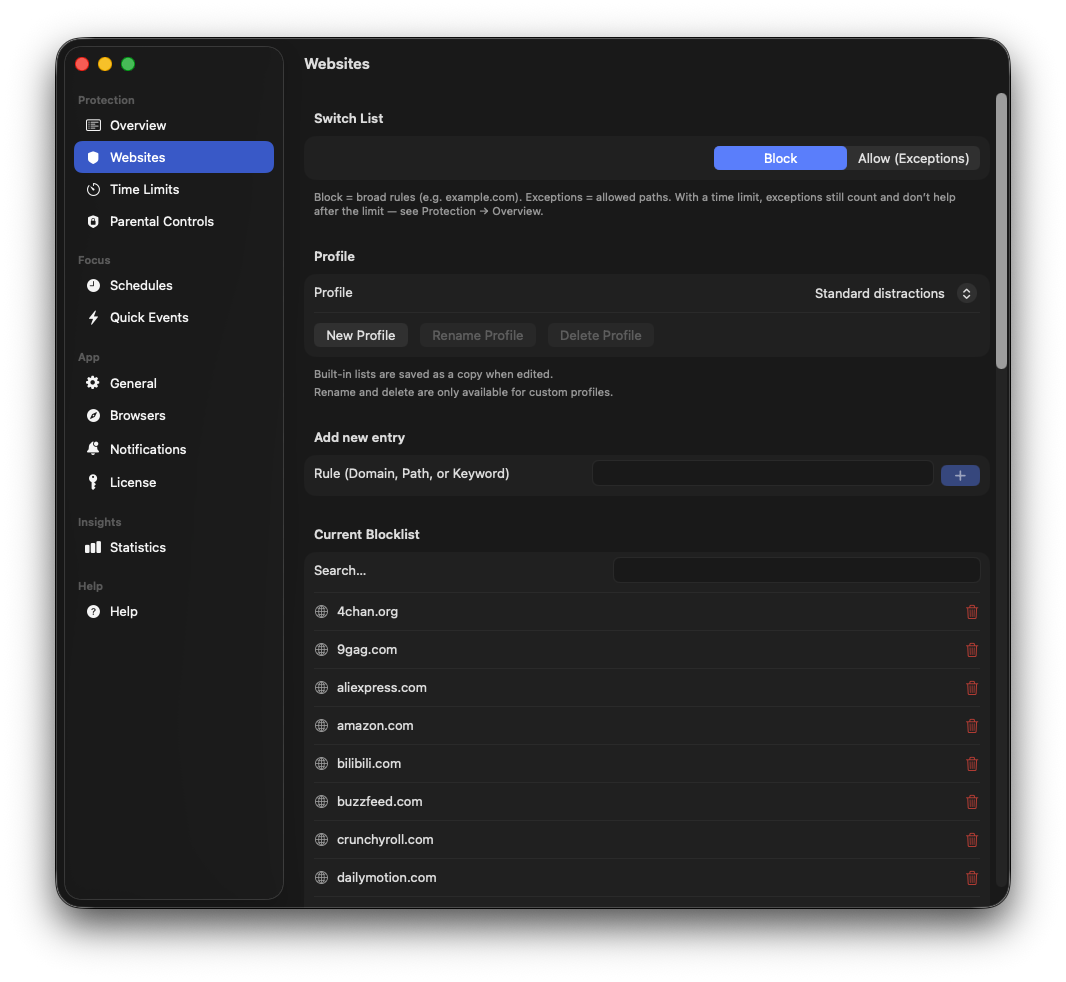
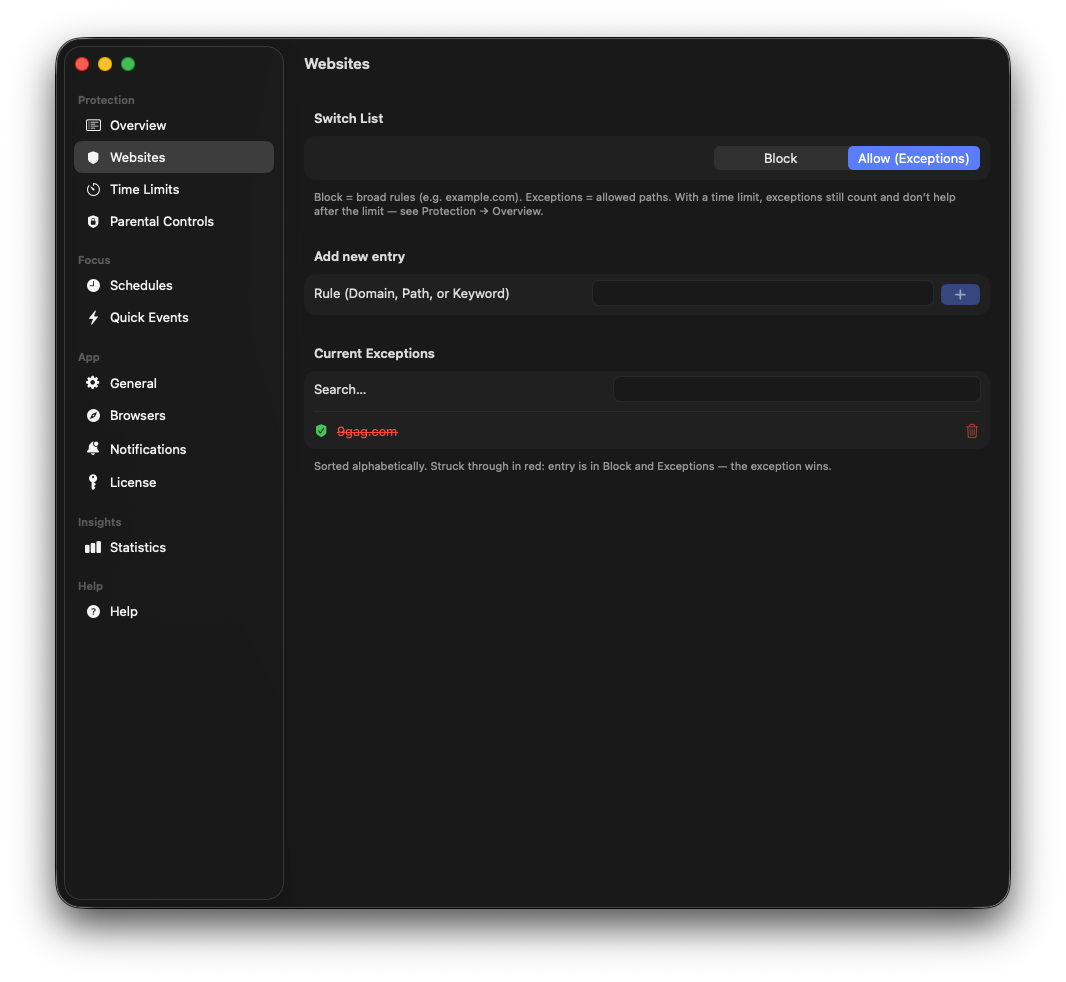
Under Websites switch between Block and Allow (Exceptions). Block = broad rules (domain/path/keyword). Exceptions = allowed paths. They still count against a time limit.
Profiles (e.g. Standard distractions) are starting lists; edited built-ins save as a copy. Rename/Delete only for custom profiles.
Entries are alphabetical; red strikethrough means the rule is in Block and Exceptions. The exception wins.
4. Time Limits
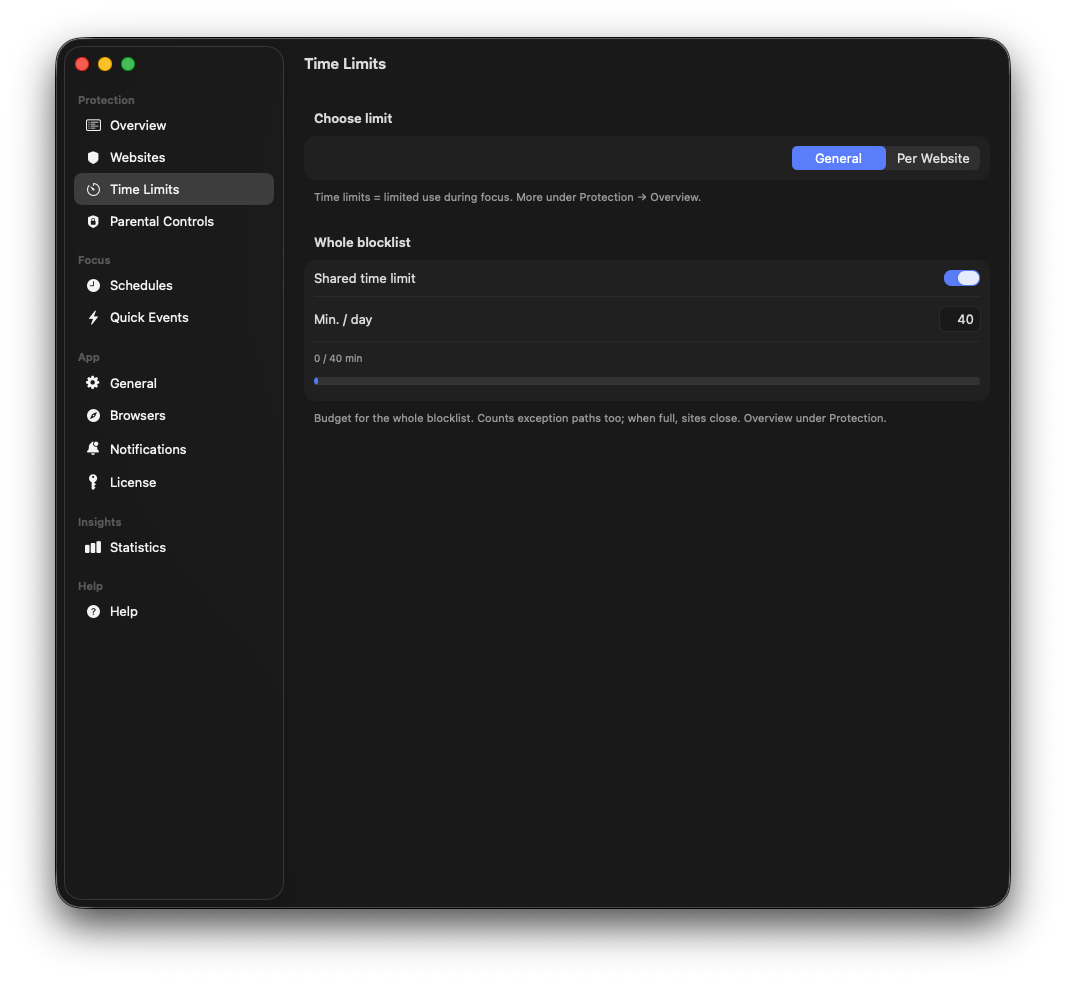
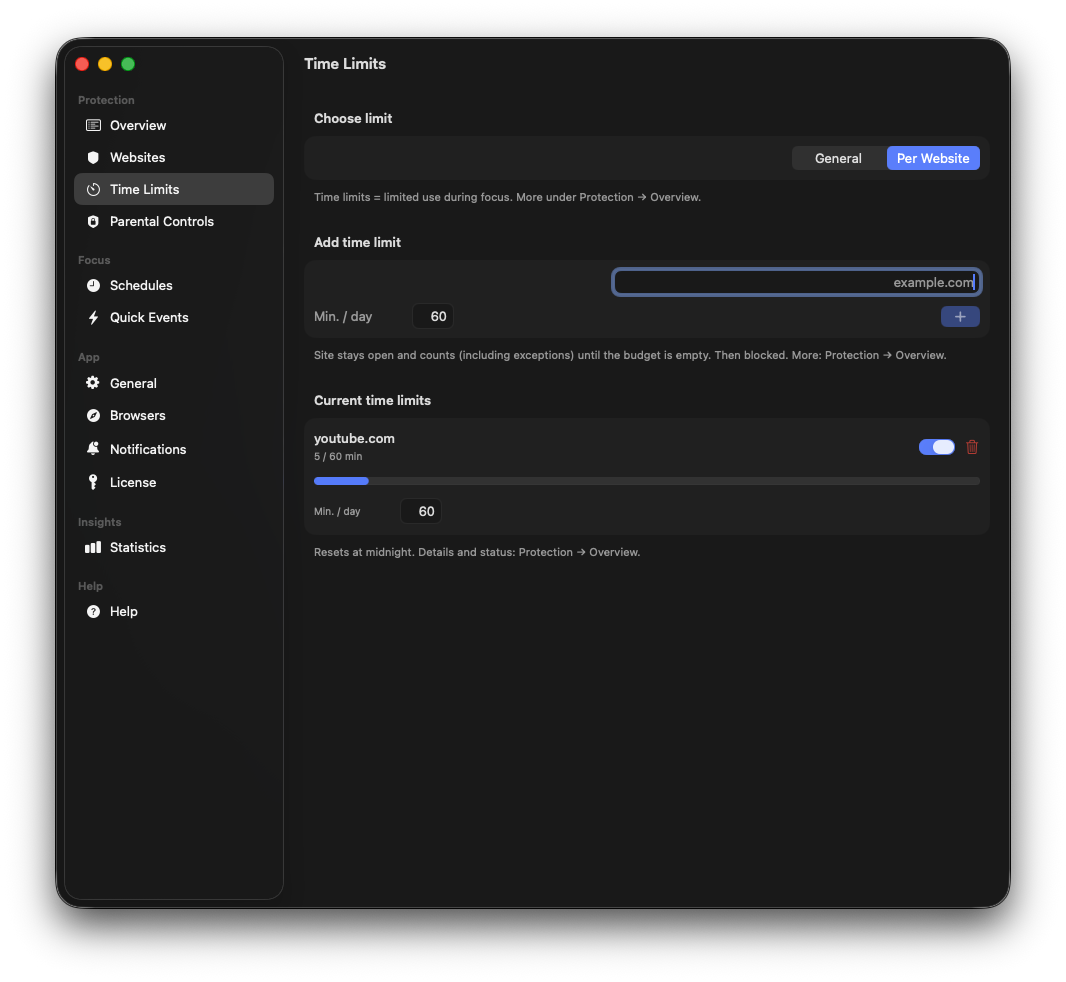
Time Limits control limited use during focus. General = shared budget for the whole blocklist; Per Website = limit per domain.
Enable Shared time limit and set min/day. The progress bar shows usage; when empty, sites close.
Add, toggle and delete per-site limits individually. Resets at midnight. Live status always under Overview.
5. Focus Lock
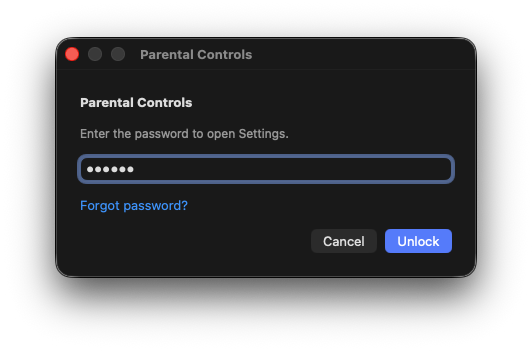
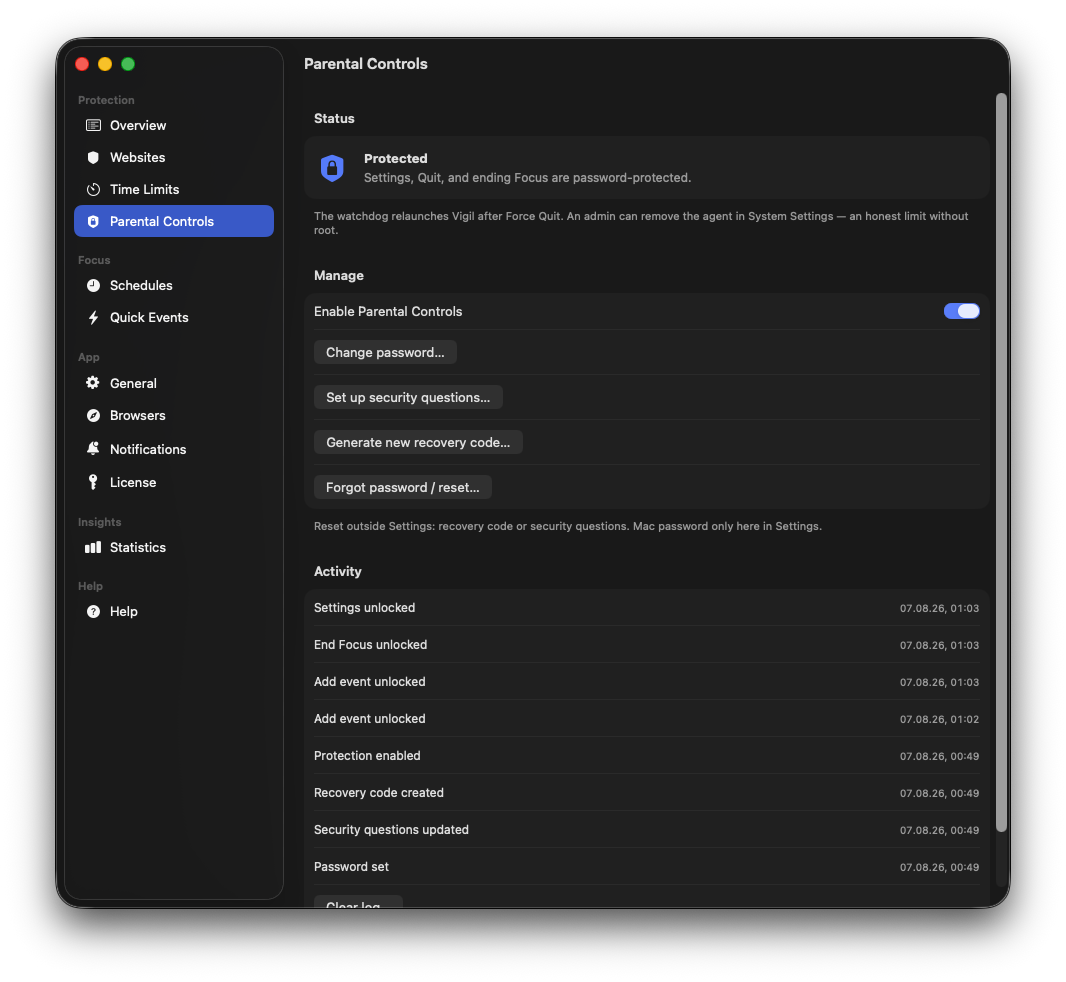
Focus Lock password-protects Settings, Quit and ending Focus, for self-control or a child's Mac. Setup: password, optional security questions, recovery code (shown once).
The watchdog relaunches Vigil after Force Quit. An admin can remove the agent in System Settings. An honest limit without root.
The activity log shows unlocks, failed attempts and resets locally. Reset outside Settings: recovery code or security questions.
6. Schedules & Always-On
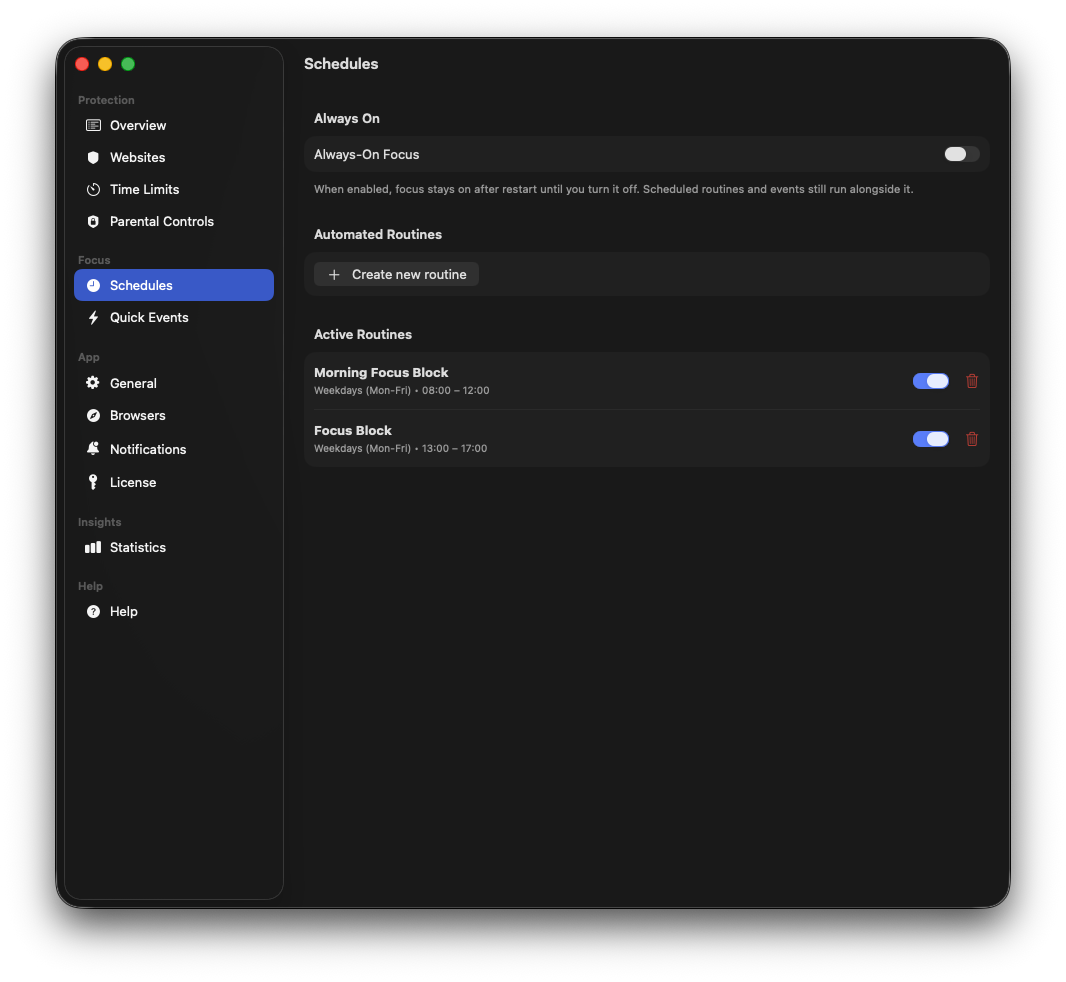
Always-On Focus keeps focus after restart until you turn it off. Routines and events still run alongside.
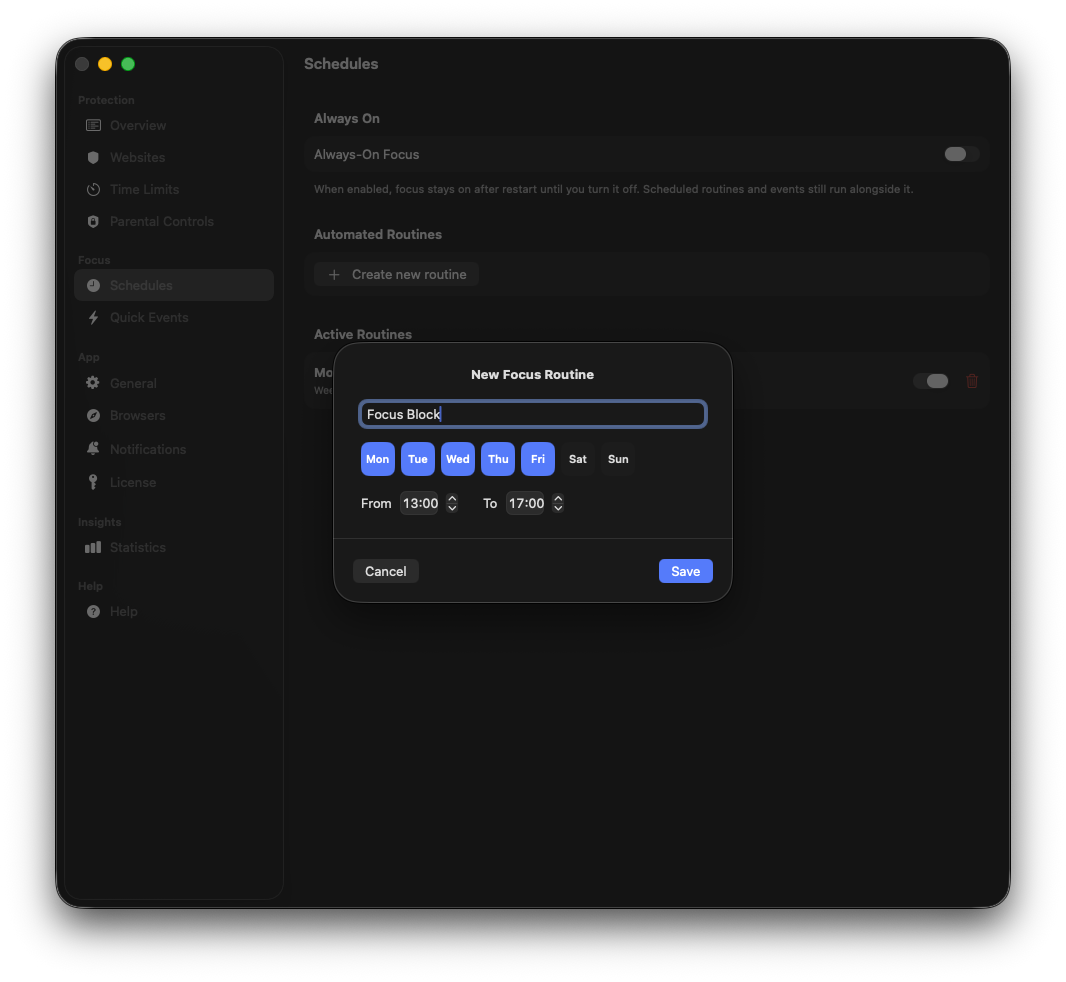
Under Automated Routines create recurring windows (name, weekdays, from–to). Active routines appear as a list with toggle and delete.
The popover shows running routines (e.g. "Routine: Deep Work") and lets you end focus early.
7. Quick Events
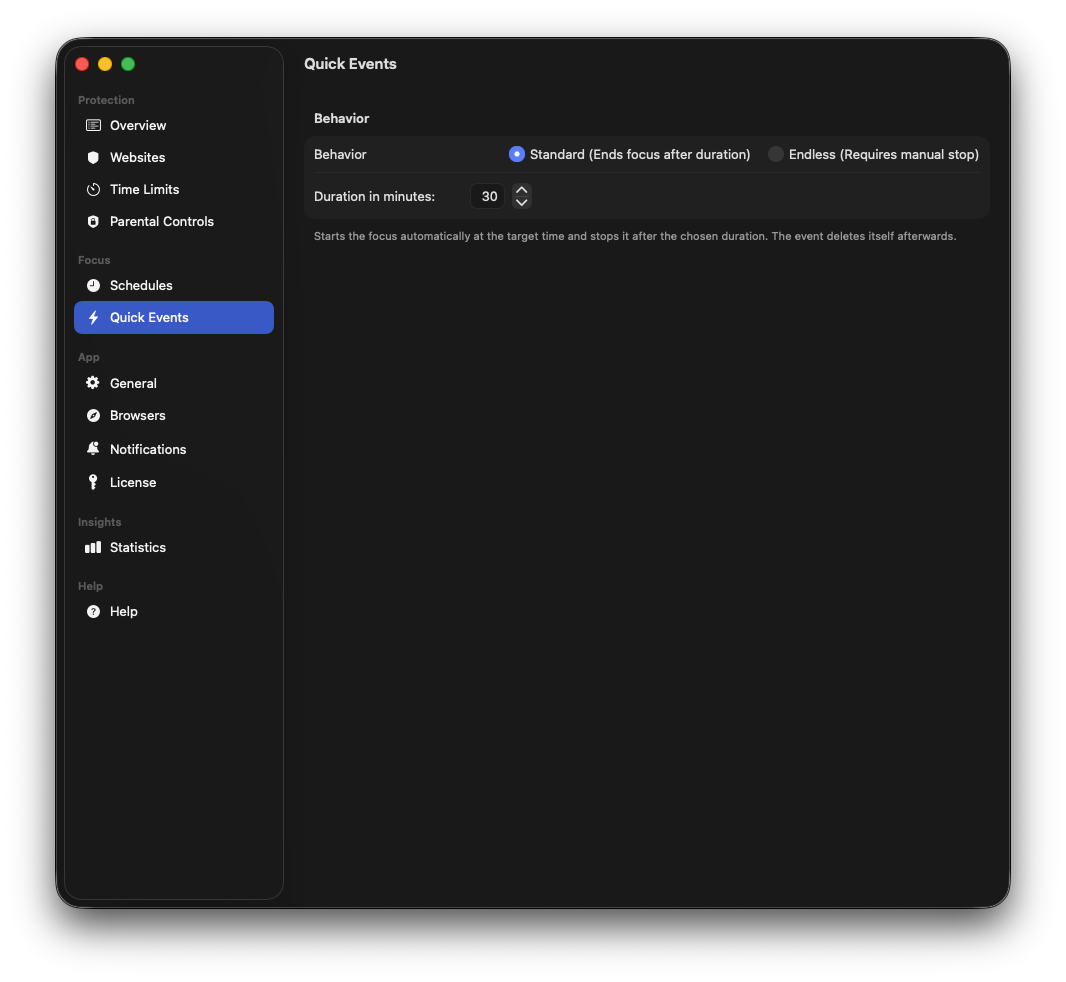
Quick Events start focus at a target time. Standard ends after the duration and deletes the event; Endless needs a manual stop.
In the popover add events with time and name. Upcoming events appear under Events with a badge.
8. Browsers
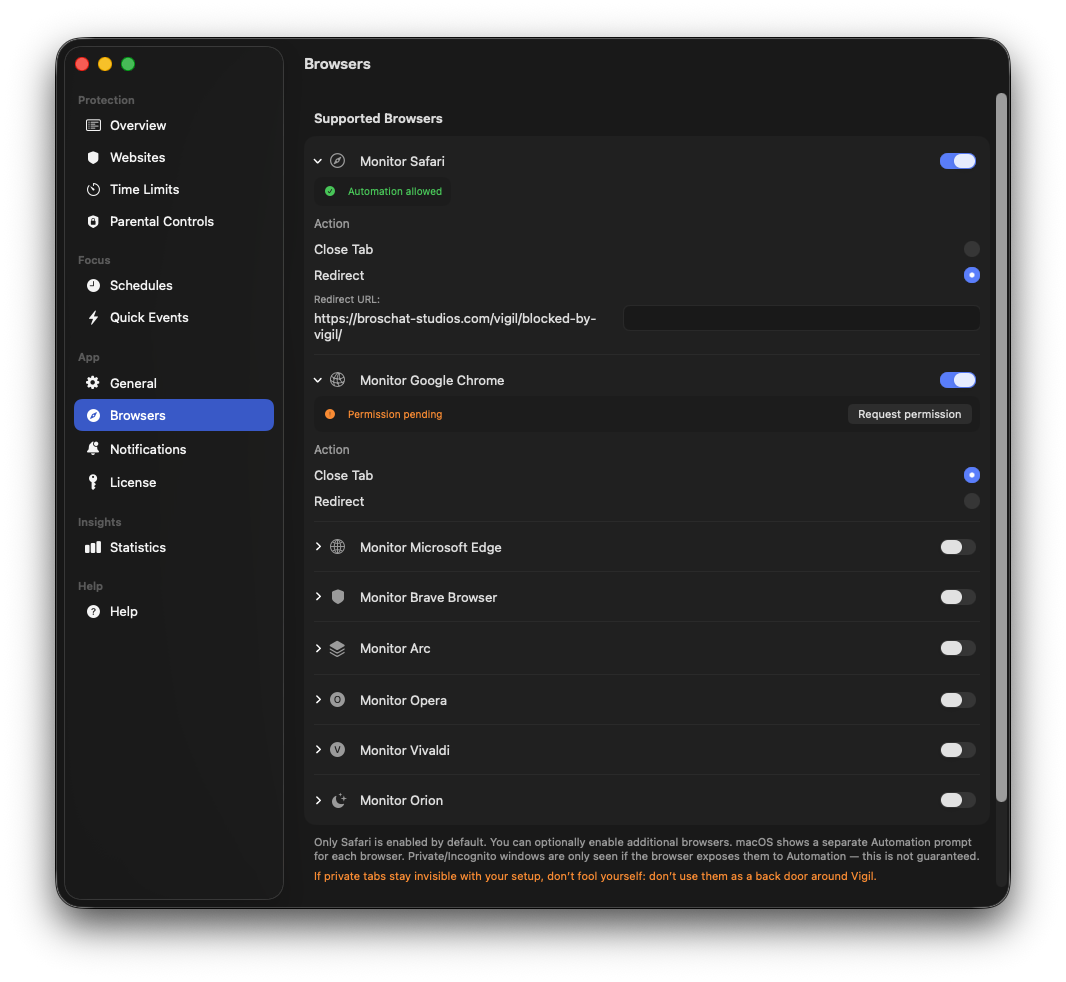
Enable monitoring per browser. Only enabled browsers are protected. Safari is on by default.
Action Close Tab vs. Redirect (your URL, e.g. the Blocked-by-Vigil page). macOS asks Automation separately per browser.
Firefox has no native Automation. Private tabs are only visible if the browser exposes them. Don't treat them as a back door.
9. Notifications
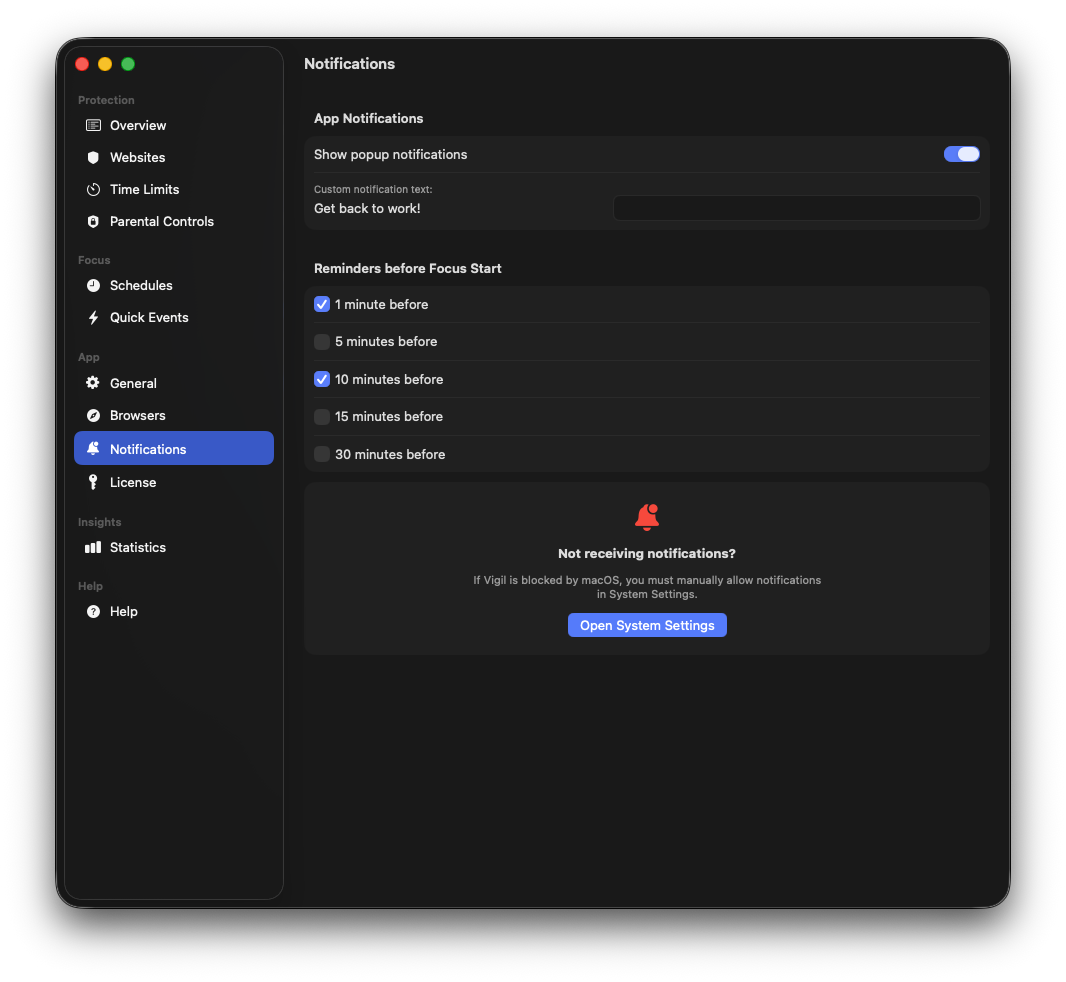
Toggle popups and custom text. Reminders 1–30 minutes before focus start (multi-select).
If notifications don't arrive: open macOS System Settings from the troubleshooting card and allow Vigil.
Everything is local, no push server from us.
10. Statistics
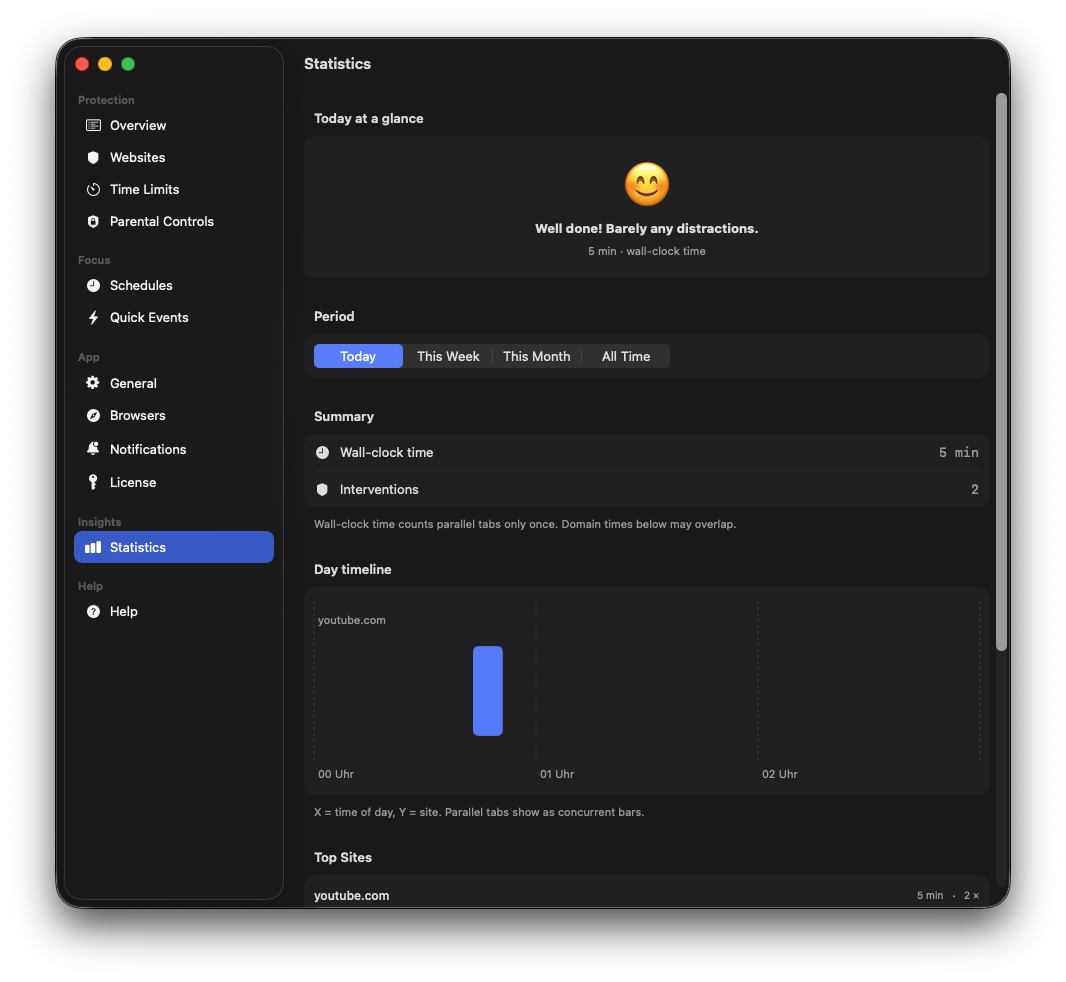
Today at a glance, period filter, summary (wall-clock time, interventions), day timeline and top sites.
Passive Tracking measures blocked sites even without focus. Optional: track only in a time window. Reset Statistics clears local values.
Emoji feedback follows avg minutes/day (scale below). No data leaves your Mac.
Emoji scale
Vigil rates usage from average minutes per day on blocked sites for the selected period.
- 0 minPerfect! No distractions.
- 1–10 minWell done! Barely any distractions.
- 11–30 minDoing okay, keep going!
- 31–60 minSo-so. A bit too many distractions.
- 61–120 minQuite a lot of distractions.
- 121–180 minThat's too much.
- 181–240 minA lot of wasted time.
- 241–300 minAlarmingly high distraction!
- 301+ minCompletely out of control.
| Avg min/day | Feedback | |
|---|---|---|
| 0 min | Perfect! No distractions. | |
| 1–10 min | Well done! Barely any distractions. | |
| 11–30 min | Doing okay, keep going! | |
| 31–60 min | So-so. A bit too many distractions. | |
| 61–120 min | Quite a lot of distractions. | |
| 121–180 min | That's too much. | |
| 181–240 min | A lot of wasted time. | |
| 241–300 min | Alarmingly high distraction! | |
| 301+ min | Completely out of control. |
11. General & License
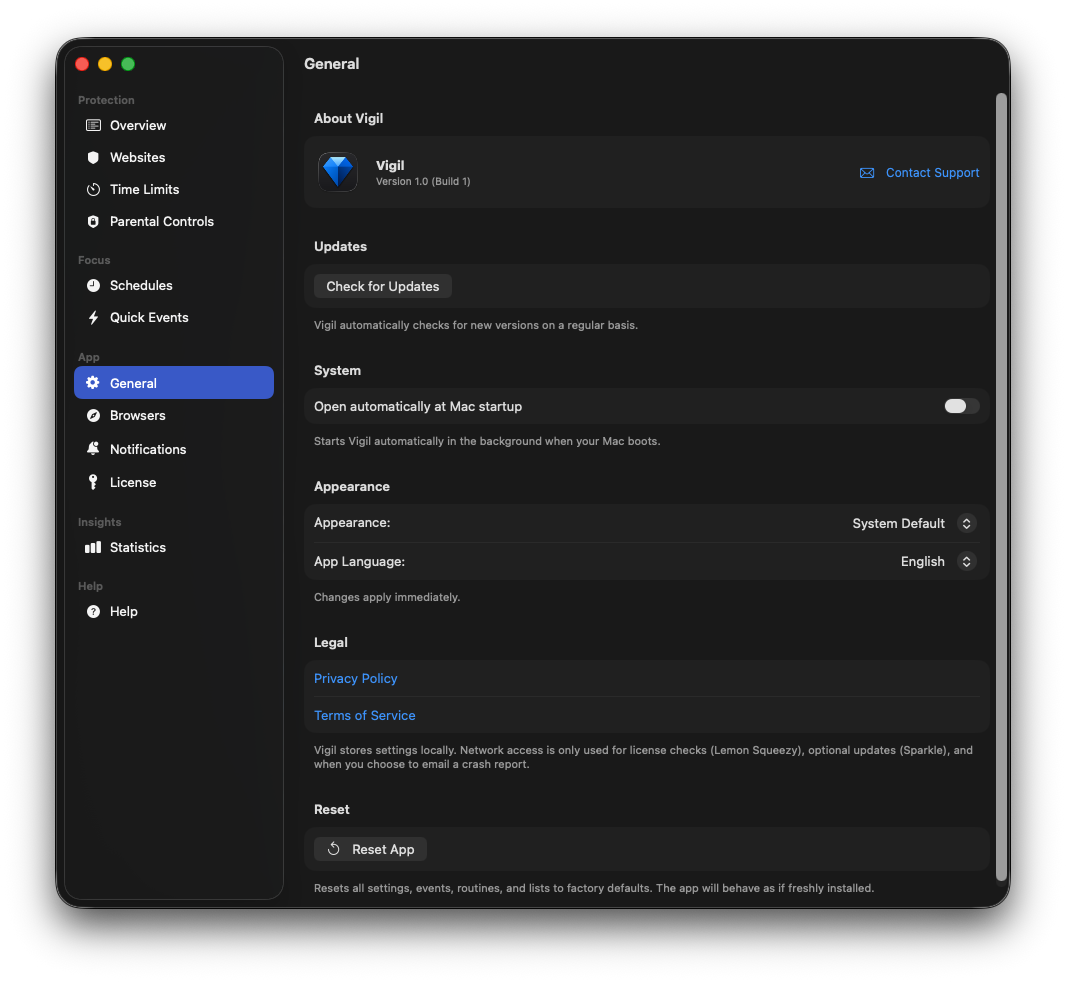
General: About Vigil (version & support), check for updates, autostart, appearance, language (6 languages + system), Reset App, Privacy & Terms links.
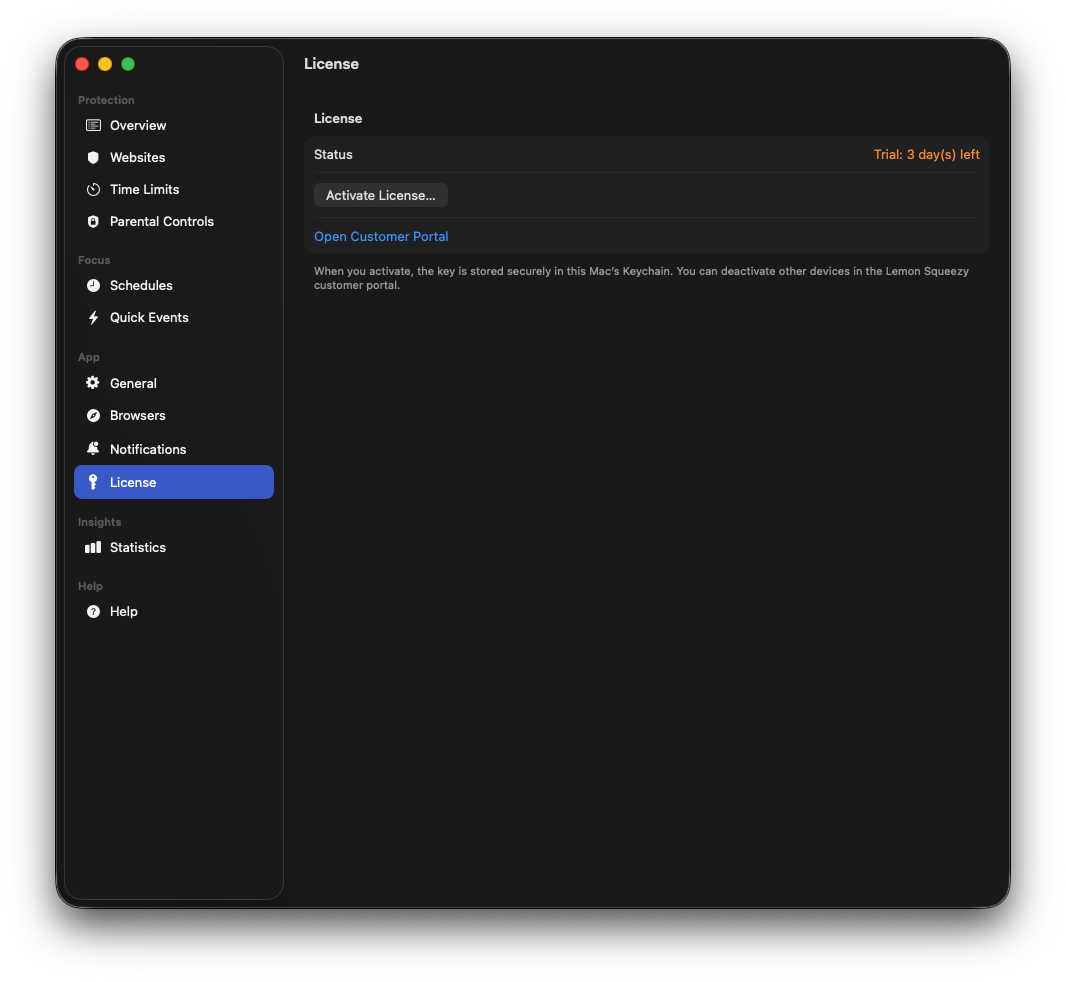
License: trial status, Activate License…, Lemon Customer Portal. The key is stored securely in the Keychain.
Network only for license checks (Lemon), optional updates (Sparkle) and if you choose to email a crash report.
12. Help
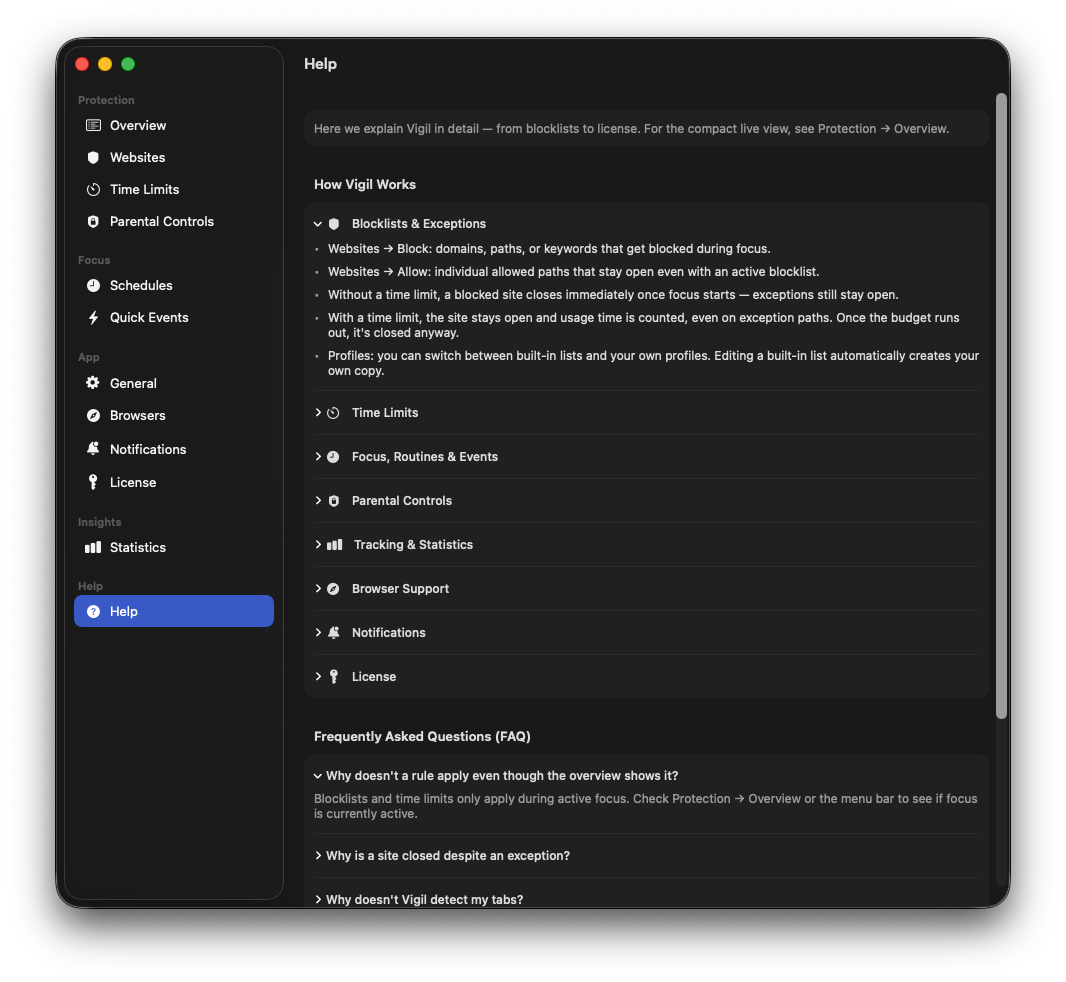
Help explains Vigil in detail: blocklists, time limits, focus/routines, Focus Lock, browsers, notifications, license and FAQ.
For the compact live status, stay on Protection → Overview. Help is the in-app reference guide. The full website FAQ (including the emergency path for a forgotten Focus Lock password) is separate.
Open the Vigil FAQ on the website