Vigil Documentation
Step-by-step guide for the macOS app – from first setup to statistics.
Screenshots show the English app UI. Vigil is also available in German and four other languages.
1. Getting started
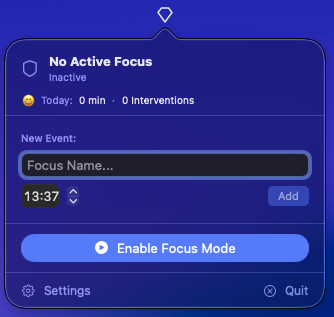
After launch, Vigil appears as an eye icon in the macOS menu bar. Click it to open the popover – start focus, add events and reach settings from there.
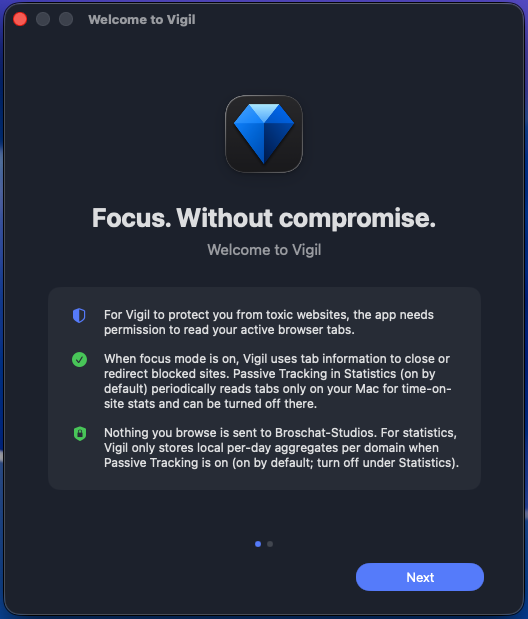
On first launch, onboarding walks you through the essentials: Vigil needs permission to read active browser tabs so it can detect and close distracting sites. Nothing is sent to Broschat-Studios.
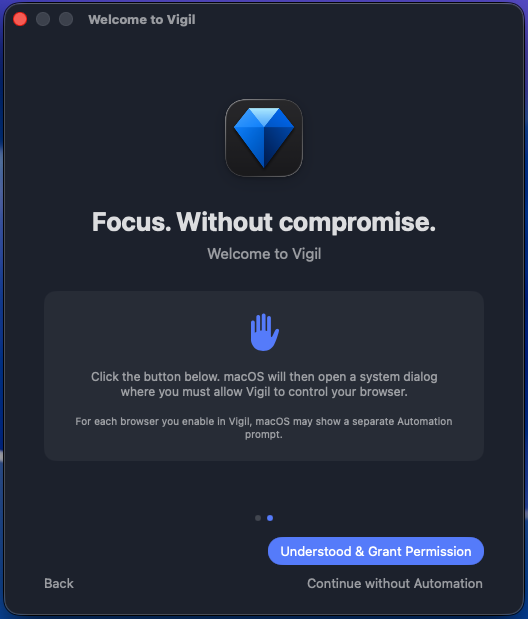
Step two grants macOS Automation permission. macOS shows a separate dialog for each browser you enable. You can also choose Continue without Automation – then Vigil will not touch browsers.
Tip: Open settings anytime via the gear icon in the popover or with Cmd+,.
2. Focus mode
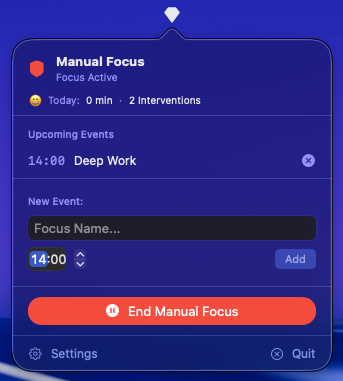
Enable Focus Mode starts manual focus immediately – independent of schedules. End Manual Focus stops it again. The popover shows your status: Inactive, Manual Focus, Focus: {name} or Routine: {name}.
Under New Event, create a one-off focus appointment: enter name and time, tap Add. Upcoming events appear under Upcoming Events.
When focus is active and you open a URL from your blocklist, Vigil closes the tab instantly or redirects – depending on your browser settings.
3. Blocklist & exceptions
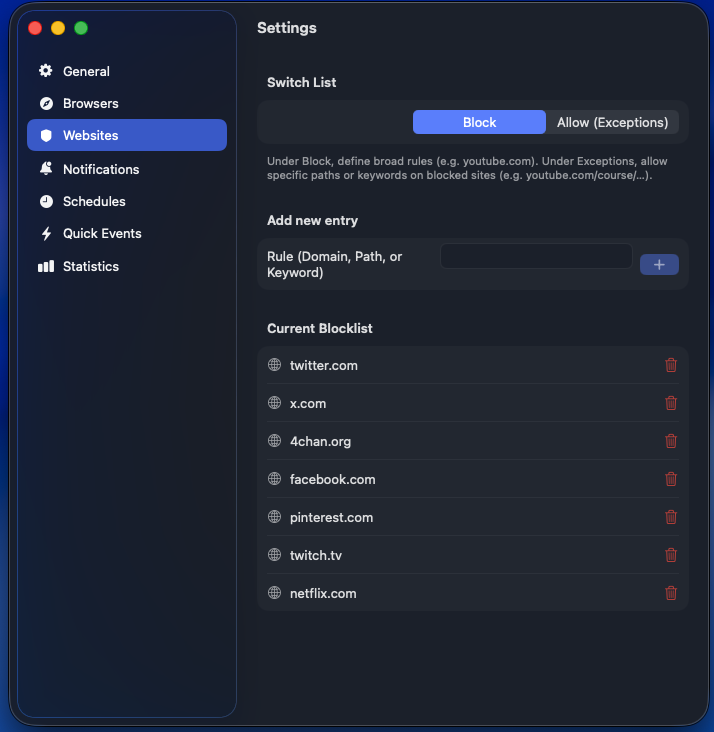
Under Websites (Settings), define what gets blocked during focus. The toggle at the top switches between Block and Allow (Exceptions) – exceptions on already blocked domains.
Rules can be full domains (e.g. twitter.com), paths (youtube.com/course/…) or keywords. Use the plus button to add entries, the trash icon to remove them.
Vigil ships with a sensible default blocklist – adjust it to your habits before activating focus mode for the first time.
4. Browsers
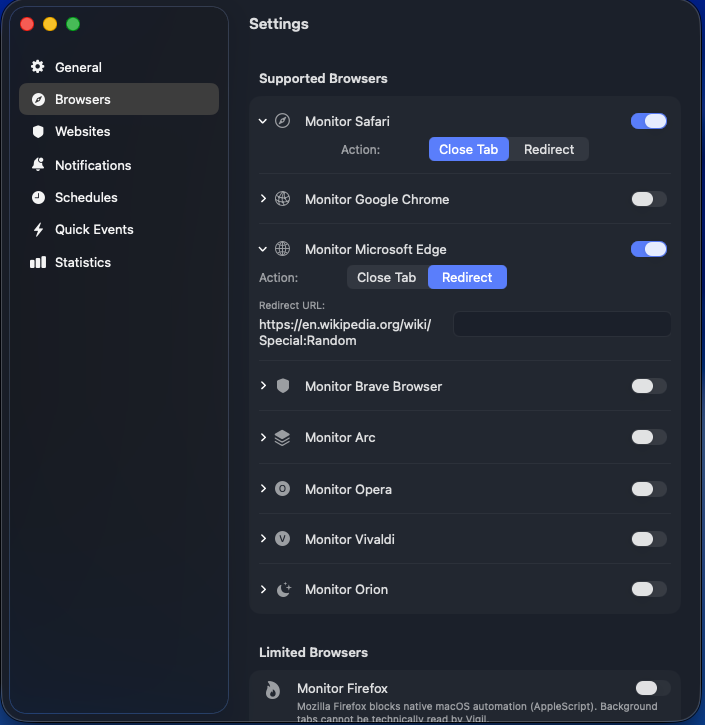
Under Browsers, enable monitoring per browser. Only enabled browsers are read and protected by Vigil.
Per browser, choose the action: Close Tab shuts matching tabs immediately; Redirect sends you to a URL you set (e.g. a productive page or Wikipedia Random).
Firefox is not supported – Mozilla blocks the native macOS automation Vigil needs for tab access. Safari, Chrome, Edge, Brave, Arc, Opera, Vivaldi and Orion are supported.
5. Schedules & quick events
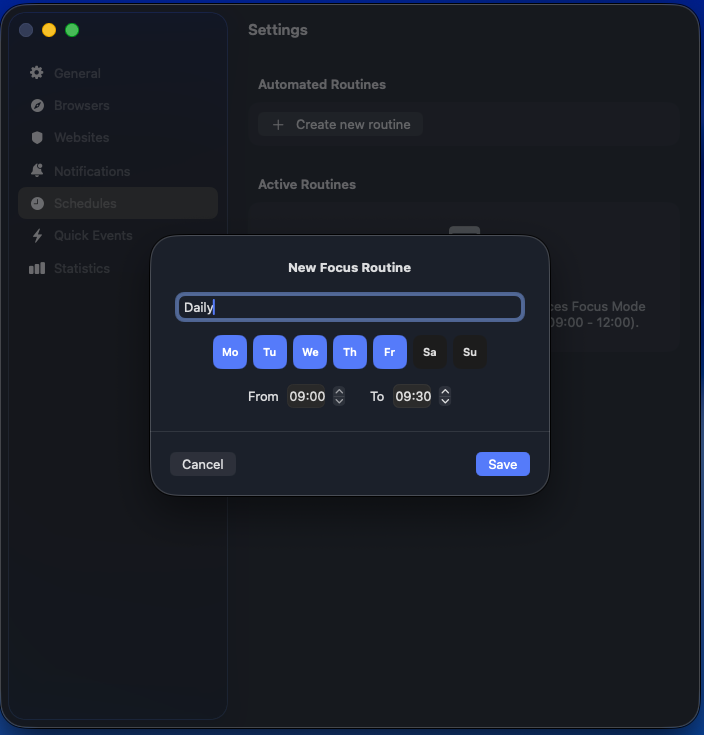
Under Schedules (tab Zeiten in German), create recurring focus routines: name, weekdays and time window. Vigil activates focus mode automatically while a routine runs.
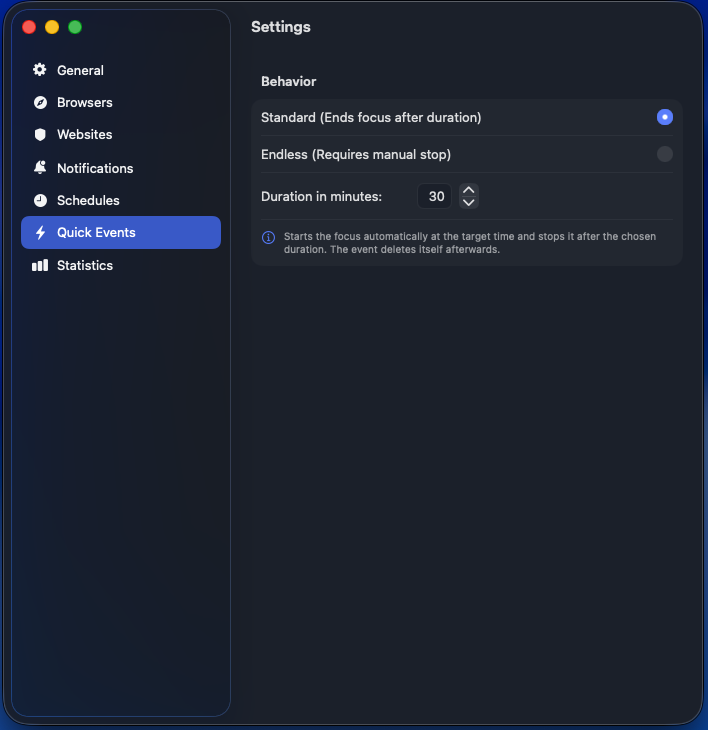
Quick Events control one-off appointments from the popover: Standard ends focus after the chosen duration and deletes the event afterwards; Endless runs until you stop manually.
Set the default duration for quick events under Quick Events in settings (e.g. 30 minutes).
6. Notifications
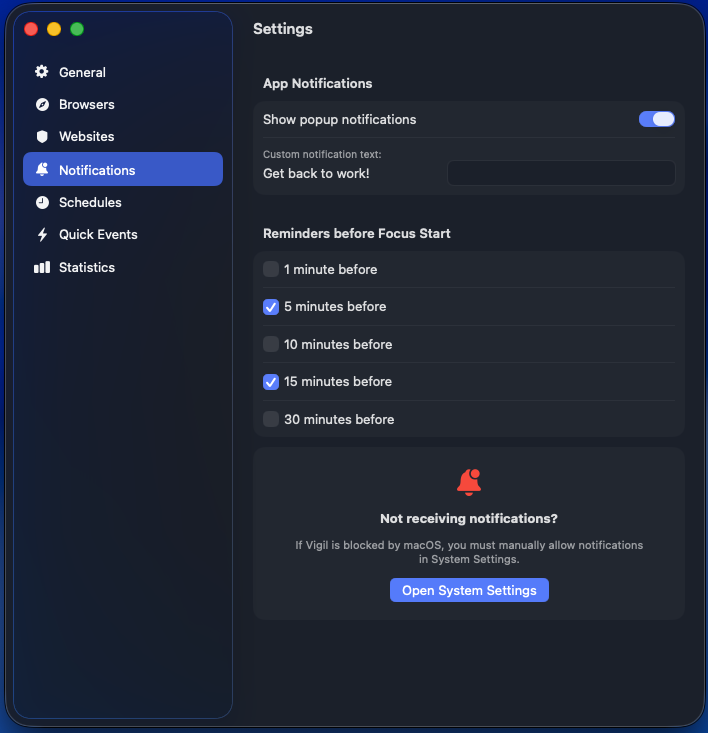
Under Notifications, toggle popup notifications on or off. You can customise the text (default: "Get back to work!").
Reminders before Focus Start: choose how many minutes before a scheduled focus Vigil reminds you (1, 5, 10, 15 or 30 minutes – multiple selectable).
If notifications don't arrive, use the troubleshooting card and open macOS System Settings to allow Vigil explicitly.
7. Statistics
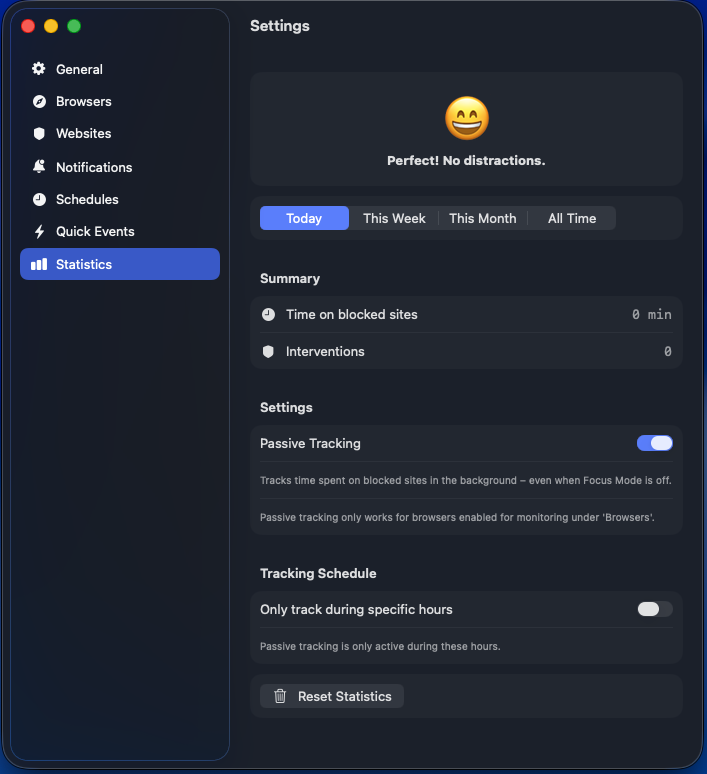
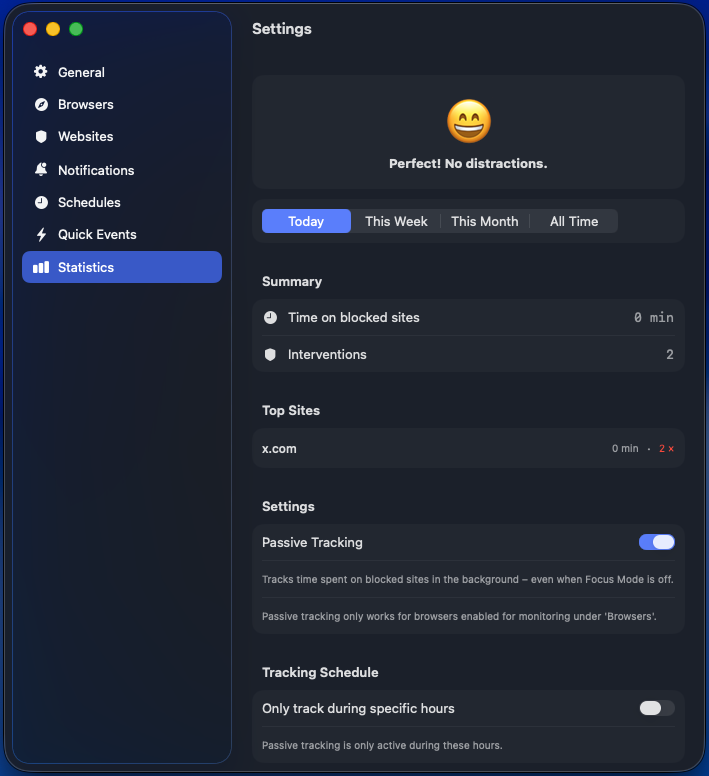
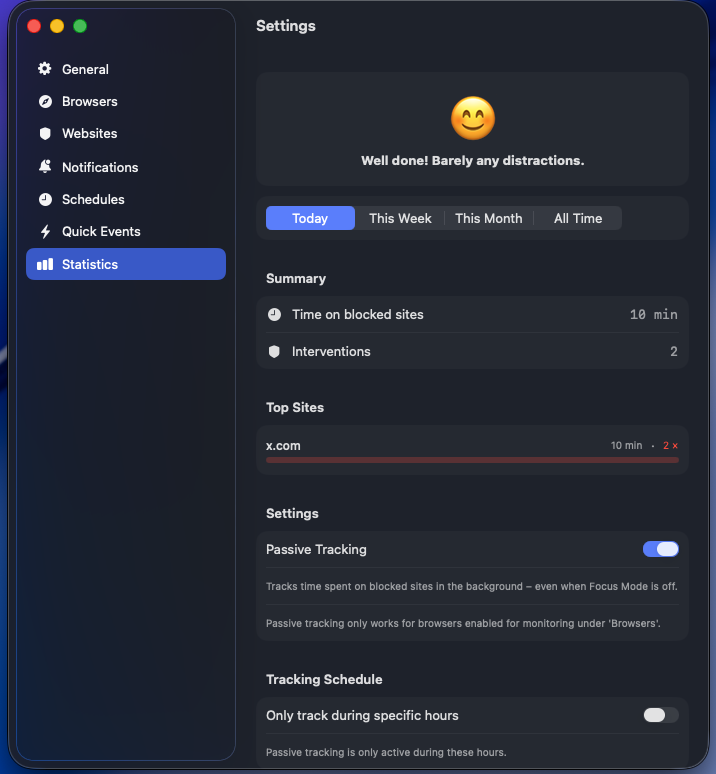
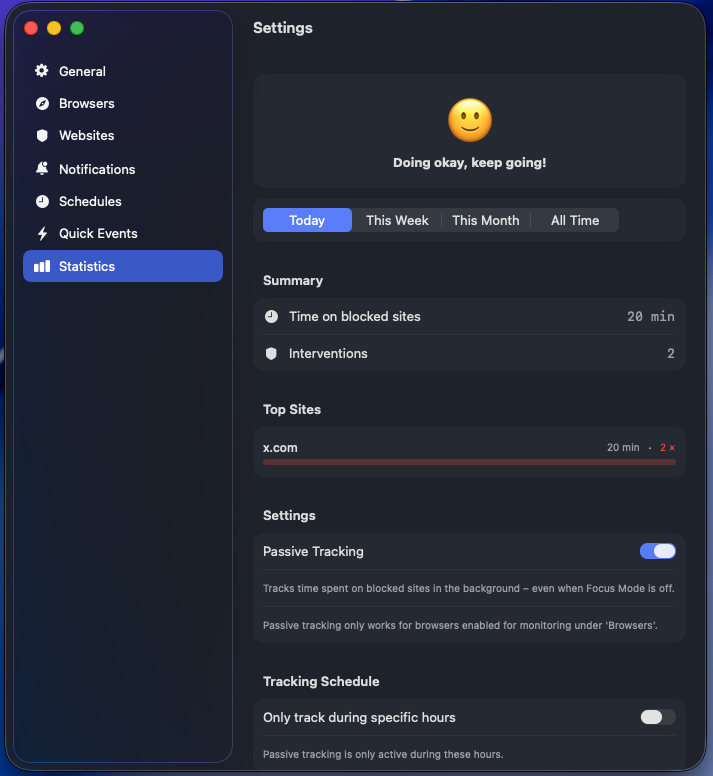
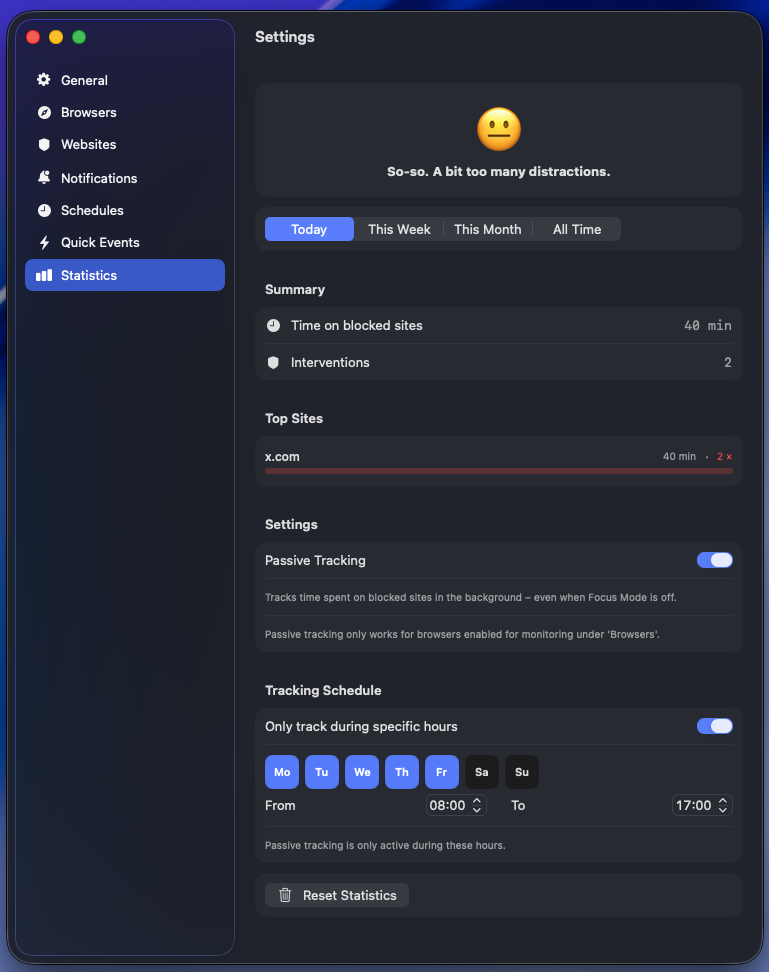
Under Statistics, see time on blocked sites, interventions (how often Vigil stepped in) and emoji feedback – based on your average minutes per day (see scale below).
Passive Tracking (on by default) reads tab URLs even outside focus mode – only for local daily aggregates per domain. You can turn it off anytime.
Optionally limit passive tracking to specific hours and weekdays (Tracking Schedule). Reset Statistics clears all values.
All statistics stay local on your Mac – see the privacy policy for details.
Emoji scale
Vigil rates your usage based on average minutes per day on blocked sites for the selected period (Today, This Week, This Month, All Time).
- 0 minPerfect! No distractions.
- 1–10 minWell done! Barely any distractions.
- 11–30 minDoing okay, keep going!
- 31–60 minSo-so. A bit too many distractions.
- 61–120 minQuite a lot of distractions.
- 121–180 minThat's too much.
- 181–240 minA lot of wasted time.
- 241–300 minAlarmingly high distraction!
- 301+ minCompletely out of control.
| Avg min/day | Feedback | |
|---|---|---|
| 0 min | Perfect! No distractions. | |
| 1–10 min | Well done! Barely any distractions. | |
| 11–30 min | Doing okay, keep going! | |
| 31–60 min | So-so. A bit too many distractions. | |
| 61–120 min | Quite a lot of distractions. | |
| 121–180 min | That's too much. | |
| 181–240 min | A lot of wasted time. | |
| 241–300 min | Alarmingly high distraction! | |
| 301+ min | Completely out of control. |
8. General
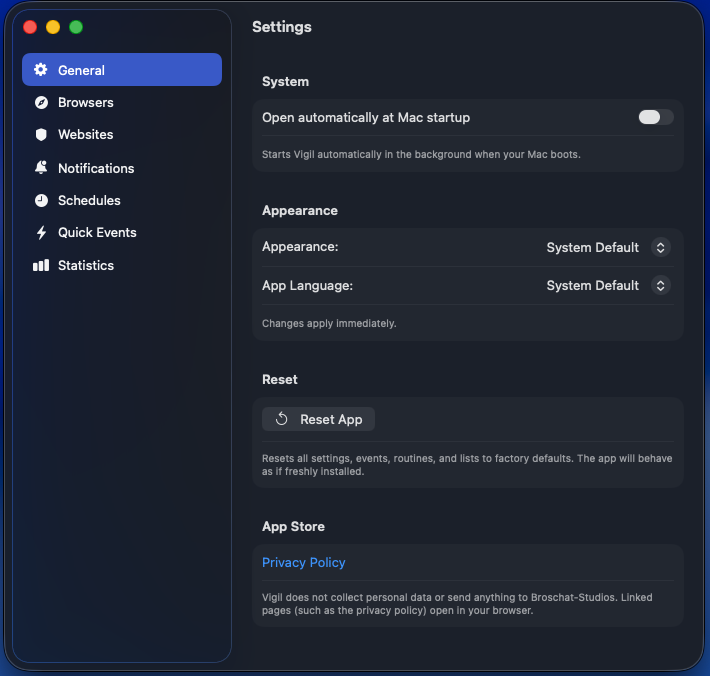
Under General, set autostart at Mac boot, appearance (System/Light/Dark) and app language. Vigil supports German, English, Spanish, French, Japanese and Chinese.
Reset App restores all settings, events, routines and lists to factory defaults – the app behaves as if freshly installed.
The Privacy Policy link opens the privacy statement in your browser.